PC Gaming on a VGA CRT: Resolutions, Refresh Rates & Adapters
How scan rates set your max refresh, the sweet spots for 17" and 19" monitors, and how to hook a CRT up to a modern graphics card.
A good VGA CRT is still one of the best gaming displays you can own: zero motion blur, no fixed resolution, and essentially no display lag. Here’s how to get the most out of one, whether you’re playing DOS classics or modern games.
No native resolution
LCDs have one native resolution and blur everything else. A CRT doesn’t. It draws whatever mode you send it, as long as it’s inside the monitor’s limits. Running a 19” CRT at 1024×768 looks just as crisp as 1600×1200, only bigger. That’s why CRTs are so good for older games that run at low resolutions.
The three limits: kHz, Hz, and pixel clock
Every CRT has a horizontal scan range (in kHz, lines drawn per second) and a vertical range (in Hz, refreshes per second). Your graphics card or adapter also has a pixel clock limit. Whichever limit you hit first sets the max.
The horizontal limit is usually the one that matters. A handy approximation:
Max refresh ≈ horizontal kHz × 1000 ÷ (visible lines × 1.05)
The extra 5% accounts for the vertical blanking interval, the time the beam spends returning to the top. Real timings vary a little, so treat it as “about.” For example, a 70 kHz monitor at 1024×768 works out to about 86 Hz, so 85 Hz is the practical max. That matches the standard 1024×768 @ 85 Hz timing (68.7 kHz).
Sweet spots for 17” and 19” monitors
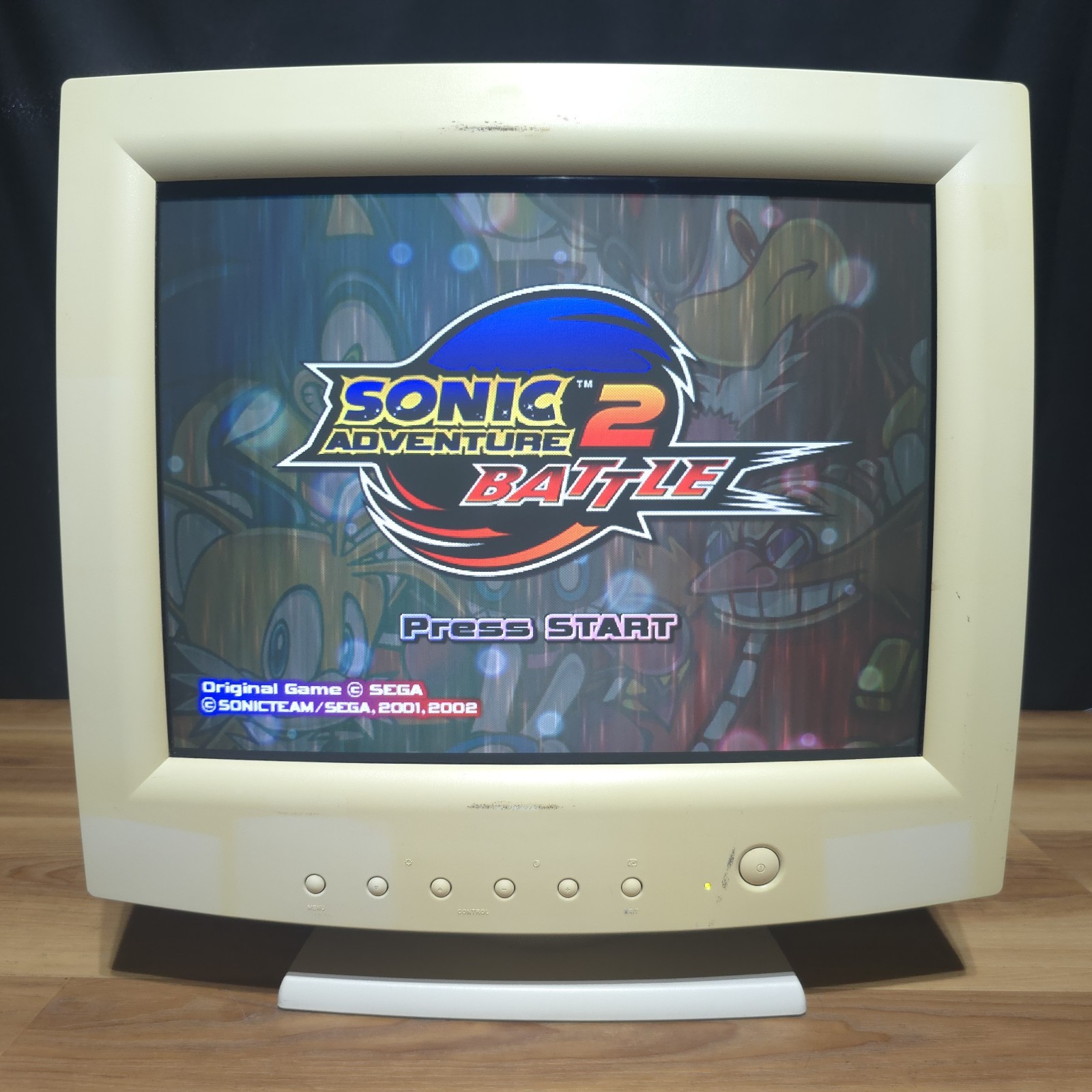
- 17” monitors (often ~70 kHz): 1024×768 @ 85 Hz is the classic sweet spot. Better units also do 1152×864 or 1280×960 at 75 Hz+.
- 19” monitors (often ~95 kHz): 1280×960 @ 85 Hz, or 1600×1200 @ ~75 Hz on the high end.
- Low resolutions: 640×480 and 800×600 need so little scan rate that many 17” monitors can run them at 100–160 Hz.
- Watch the shape: 1280×1024 is a 5:4 resolution. On a 4:3 tube it looks slightly squashed. 1280×960 keeps circles round.
Every one of our PC monitor listings includes the horizontal and vertical ranges, so you can run the math before you buy.
Shadow mask vs aperture grille
- Shadow mask (most Dell, Gateway, HP, CTX): a perforated metal sheet. Sturdy, no lines on screen.
- Aperture grille (Sony Trinitron, Mitsubishi Diamondtron): fine vertical wires, usually brighter and sharper. Large ones have one or two thin horizontal damper wires that you can see faintly on bright screens. That’s normal, not damage.
Connecting to a modern graphics card
Graphics cards dropped analog output years ago:
- NVIDIA: the GTX 900 series (up to the 980 Ti / Titan X) was the last with analog through DVI-I. The GTX 10-series and newer are digital only.
- AMD: the R9 380X is commonly cited as one of the last cards with analog output.
On newer cards you need a digital-to-VGA adapter (DAC). Which one depends on how hard you’ll push the monitor.
Our budget pick: the MOREAD HDMI-to-VGA adapter (Amazon). It’s cheap, built well, and gives a clean, sharp picture on our CRTs. It’s rated for 1920×1080 @ 60 Hz (about a 148.5 MHz pixel clock), which covers the modes most people actually run:
- 1024×768 @ 85 Hz (94.5 MHz) ✔
- 1280×960 @ 85 Hz (148.5 MHz) ✔
- 640×480 and 800×600 at high refresh ✔
It needs a full-power HDMI port (desktop graphics cards are fine); the listing notes it doesn’t work with some low-power HDMI devices.
Going beyond that (1600×1200 @ 75 Hz needs about 202.5 MHz, and big 19”–21” monitors can go further): use a DisplayPort-to-VGA adapter. The CRT community’s usual recommendation is the Sunix DPU3000, which users report running at over 500 MHz. The Delock 62967 is a cheaper alternative. These are community-reported numbers, not manufacturer specs, so results vary.
Custom resolutions with CRU (use CVT timing)
Windows and your graphics driver only offer the modes your monitor reports, and old CRTs often report a short or outdated list. Custom Resolution Utility (CRU) by ToastyX lets you add exactly the resolutions and refresh rates your CRT can handle, like 1280×960 @ 85 Hz or 800×600 @ 120 Hz.
The setting that matters most is timing. A CRT’s electron beam needs time to sweep back to the left edge after every line and back to the top after every frame. That time is the blanking interval, and the timing standard decides how much of it you get.
- Use “CVT standard” (or “Automatic (CRT)”, which uses the standard VESA timings for common 4:3 and 5:4 modes and CVT for everything else). CVT is the VESA standard designed for CRTs, with full blanking intervals.
- GTF is the older standard CVT replaced. Many CRTs were built around it, so it’s fine too, but CVT is the better default.
- Avoid “CVT-RB,” “CVT-RB2,” and “Automatic (PC).” RB means reduced blanking: it cuts the blanking interval to save bandwidth on LCDs, which don’t have a beam to move. On a CRT that can shift or crop the picture, cause sync problems, or just look worse.
Step by step (Windows)
- Download CRU from the official thread, extract it, and run CRU.exe.
- Pick your CRT from the drop-down at the top.
- Under Detailed resolutions, click Add…
- Set Timing to CVT standard (or Automatic (CRT)).
- Enter the resolution and refresh rate. CRU shows the resulting horizontal frequency (kHz) and pixel clock (MHz):
- The kHz must stay under your monitor’s horizontal max. That’s the number in every one of our PC monitor listings; plug it into the calculator above.
- The pixel clock must stay under your graphics card’s or adapter’s limit (about 165 MHz for many cheap HDMI-to-VGA dongles).
- Click OK twice, then run restart64.exe (restart.exe on 32-bit Windows) to reload the graphics driver. If the screen doesn’t come back within about 15 seconds, press F8 for recovery mode, which temporarily unloads your custom modes.
- Select the new mode in Windows display settings (Advanced display → refresh rate) or your GPU control panel.
- Center and size the picture with the monitor’s on-screen menu. Most CRTs save geometry separately for each mode.
Undo everything: run reset-all.exe from the CRU folder and reboot.
Out of slots? The main block of your monitor’s EDID (the mode list it reports to the PC) only holds a few detailed resolutions. Add an extension block in CRU for more. Some older drivers and GPUs only support up to 3 extension blocks.
Valid mode still blocked? If CRU accepts a mode but the driver refuses it, the driver’s pixel-clock cap may be the problem. ToastyX’s pixel clock patchers remove those caps for analog and single-link outputs.
On Linux
The cvt command generates the same CVT timings for xrandr:
cvt 1280 960 85
xrandr --newmode "1280x960_85.00" <numbers printed by cvt>
xrandr --addmode VGA-1 "1280x960_85.00"
xrandr --output VGA-1 --mode "1280x960_85.00"
Run xrandr on its own to find your output’s name (VGA-1, DP-1, etc.). As in Windows, skip cvt -r (reduced blanking) on a CRT.
Why CRTs feel so good for games
- Motion clarity: LCDs and OLEDs hold each frame for the full refresh, which smears motion as your eyes track it. A CRT flashes each pixel briefly, so motion stays sharp. Even modern 240 Hz panels struggle to match it.
- Lag: a CRT on an analog input does essentially no buffering.
- DOS games: most DOS games ran in a 320×200 mode that VGA cards actually drew at 70 Hz (your monitor may report it as 720×400). A CRT shows it exactly as it was meant to look.
Don’t push it past its limits
If the monitor says “Out of range” or “Frequency over range,” the mode is outside its limits. Change it rather than trying to force it. Pushing a CRT beyond its scan range strains the high-voltage circuitry. Newer monitors just blank out, but older ones can actually be damaged. Stay within the ranges on the spec sheet and you’ll be fine.
Want help picking resolutions for a specific monitor? Email us with the model and your graphics card.
Further reading
- Blur Busters forums: the home of CRT motion-clarity nerds
- CRT Database: scan ranges for most PC CRTs
- Custom Resolution Utility (CRU): official download and docs
- Blur Busters CRU Glossary / FAQ